Order Automatica controls
Mouse, gamepad, and Steam Deck maps for a game that is almost entirely drag-and-drop.
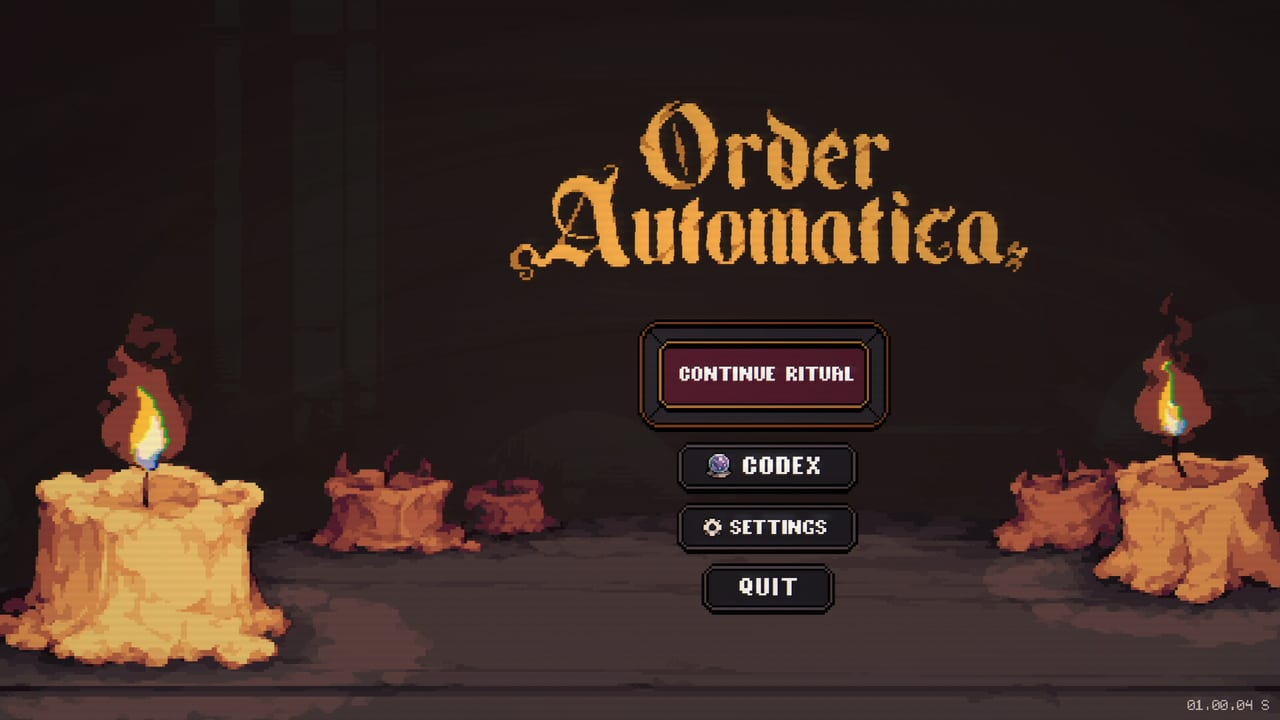
Order Automatica is a cursor game wearing an autobattler. You never aim a skillshot. You grab portraits, drop them on numbered cells, click Draw Again, and press End Preparation. That makes the control question simple: can you move a pointer quickly, confirm, and cancel without fighting the UI. This page covers mouse, full gamepad support, Steam Deck, and the console ports from Draw Distance.
The title screen is four actions: Continue Ritual, Codex, Settings, and Quit. Settings is where you should look first on a new platform. Volume sliders, language, and the cursor speed that will make or break a gamepad session all live there. Languages in the 1.00 build are English, Simplified Chinese, Polish, Traditional Chinese, Japanese, and Korean.
Mouse and keyboard (PC)
On Steam and GOG the native scheme is mouse:
- Left click + drag moves a unit or item onto a cell, the Hold slot, Discard, or Distill.
- Left click buys a shop portrait, presses Draw Again, Cell Effect, and End Preparation.
- Hover shows ability text. Always hover a new unit before you spend Essence.
- Right click or dragging back to the shop row cancels a pickup on most builds.
- Esc opens Settings / pause from a ritual.
Keyboard is optional. There is no hotkey that plays the fight for you because the fight is already automatic. The only speed you control is the 1x / 2x / 3x Auto-Play cluster on the left of the battle screen. Click those with the mouse; they are not WASD.
If a tooltip feels too small on a 4K monitor, drop to 1080p or 1440p in the OS. The pixel UI is drawn for readable portraits, not for 200% scaling.
Gamepad (Xbox, PlayStation, Switch, PC)
Full controller support shipped before the 4 September 2026 launch. You no longer need to emulate a mouse on Xbox or PlayStation. The mental model is still a cursor:
- Left stick moves the pointer across the two grids, the shop, and the side buttons.
- South face button (A / Cross / B on Switch) confirms pick-up and drop.
- East face button (B / Circle / A on Switch) cancels a held portrait.
- Right stick can nudge the pointer at a lower speed for dropping onto cell 5 without overshooting.
- Start / Plus opens Settings.
- Shoulders hop between the shop row and the player grid on some console builds; if they do nothing on your pad, use the stick.
Keep stick sensitivity conservative. Mickey Sanchez, the designer, publicly recommended about 50% mouse-style sensitivity when the Deck still used simulated mouse. That advice still applies to any pad that feels slippery: slower cursor, fewer misdrops onto the enemy board.
Nintendo Switch and Switch 2 play in handheld or docked. In handheld, treat the right grid as the far side of the screen and sit the console closer than you would for a platformer. Docked, a Pro Controller is more comfortable than Joy-Con sticks for nine tiny cells.
Steam Deck
The developer tests on Steam Deck regularly. Early 2026 advice was: left stick as mouse at 50% sensitivity, A as left click. By late August 2026 that workaround was obsolete because full controller support landed. Use the official gamepad layout first. If you still prefer trackpads, map the right pad to mouse and the right trigger to click; keep the left pad for the radial ignore so you do not throw the cursor while holding the device.
Steam Input community layouts may appear after launch week. Prefer the official template until a high-vote layout exists. Cloud saves are enabled on Steam, so a Deck session and a desktop session can share the same ritual progress.
Mobile (iOS and Android)
Touch is drag-and-drop, same as mouse. Use a finger, not a stylus, unless you already play autobattlers that way. Two practical habits:
- Pause with the menu button before you answer a phone overlay. Preparation has no timer, so you can take as long as you want.
- Zoom with system magnification if portraits feel small on a compact phone. The 3x3 boards were designed for a PC window, then scaled to handhelds.
There is still no online play. A second person watching your phone is as close as a shared session gets.
Accessibility notes that affect controls
Steam lists custom volume controls, a mouse-only option, playable at your own pace, playable without timed input, and save anytime. Those flags are honest. Nothing in Order Automatica is a quick-time event. If you can move a pointer and read a tooltip, you can finish Initiate.
Color is used for candle stacks, Essence, and red/blue cell borders. Tooltips still print the effect in text, so you are not locked out if red versus blue is hard to see. Hover remains the source of truth.
Related pages
Once the cursor feels invisible, go back to Getting Started for the shop loop, then grid and positioning so the cells you drop onto are the right ones. Store pages and OS requirements are on platforms. If a patch changes the gamepad map, it will be noted in updates.
Frequently Asked Questions
Quick answers for the current ritual.
Does Order Automatica support a controller?
Yes. Full controller support shipped before launch. You can play with Xbox, PlayStation, and Switch pads without Steam's mouse emulator.
How do I play on Steam Deck?
Use the official gamepad layout. Simulated mouse is no longer required. The developer video on this page shows the older stick-as-mouse setup if you still prefer it.
Are there keyboard hotkeys for the shop?
Mouse (or a gamepad cursor) is the intended scheme. There is no competitive hotkey bar because fights run automatically.
Can I play with a friend?
No. The game is single-player. Controls never include a second cursor.